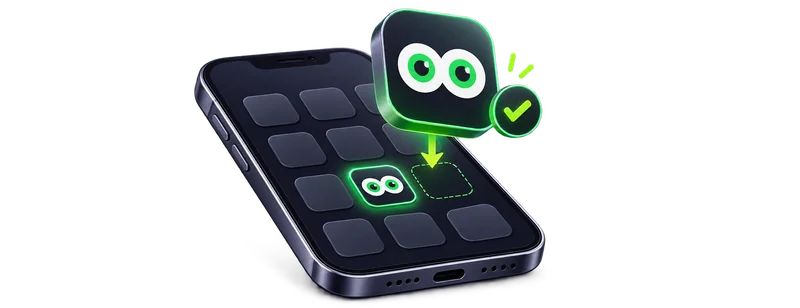
Easy to set up
Skip the app store. Add Gazino to your home screen and open it again with one tap.

Site şu anda başlatılamadı. Bağlantınızı kontrol edip tekrar deneyin.


Launch Gazino from your home screen. Add it to your device and jump straight in from iOS, Android or Desktop.
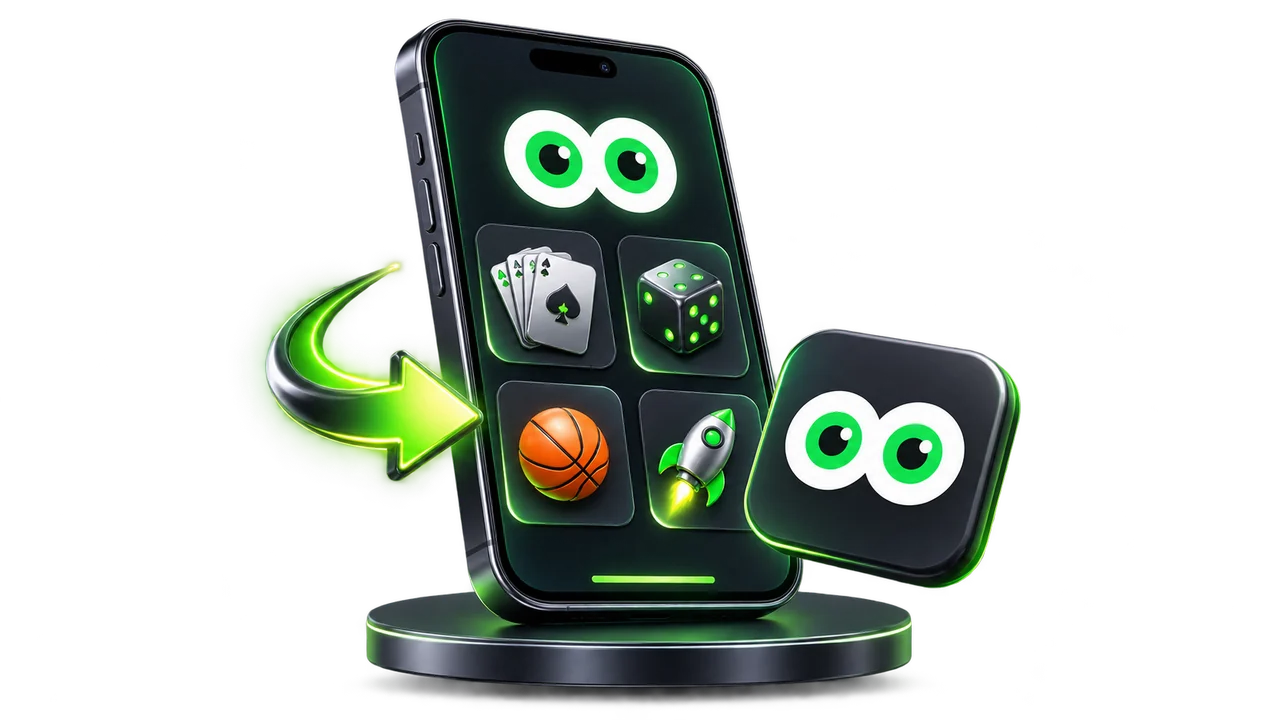
Skip the app store. Add Gazino to your home screen and open it again with one tap.
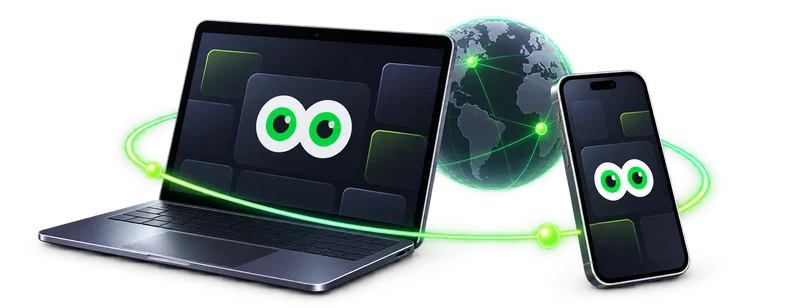
Access your account on your phone, tablet or desktop. Keep your favourite games and sports close by.

Use the web experience without a separate app download. An internet connection is required for live content.
A Progressive Web App lets you open a website like an app from your home screen. You use your existing Gazino account and the same web features.
Installation depends on your device and browser. Try Chrome on Android, Chrome or Edge on desktop, or Safari on iPhone and iPad. You can still use the website normally in browsers that do not support installation.
Gazino updates on the web. Reopen the app or refresh the page to load the latest changes.
The app connects to the same gazino.io address over HTTPS, with the same account protections. Check the address and never share your password or wallet recovery phrase.
Open Gazino in Chrome. Press “Get the App” and confirm in your browser. If no prompt appears, open the browser’s ⋮ menu and choose “Install app” or “Add to Home screen”.
Open Gazino in Safari. Tap Share, choose “Add to Home Screen” and confirm with “Add”. If shown, keep “Open as Web App” enabled.
Use the same linked wallet on the sign-in screen. If your wallet is unavailable in the installed app, use a compatible browser or add an email and password in your existing account settings. Installing does not create a new account.